
Cloud Sync
Configure encrypted cross-device sync in Msty Go
Cloud Sync keeps Go state consistent across devices with encryption protections built into the workflow. Treat setup carefully because sync-direction decisions can affect existing state.
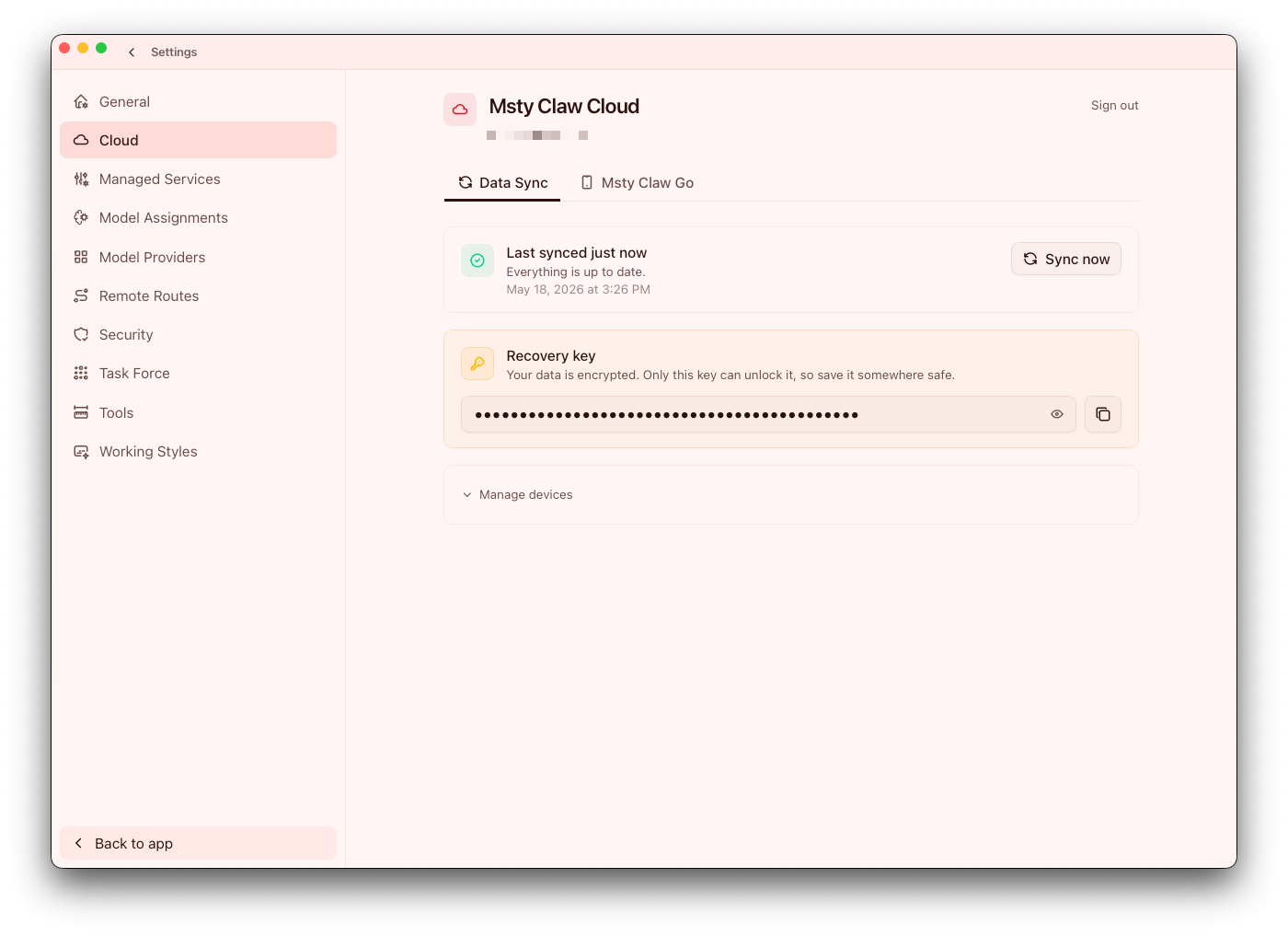
Open Settings > Cloud to configure it.
Availability
Cloud Sync is access-gated. If your account is invited, sign in to continue setup. If access is not available for your account, continue operating in local mode and document any required cross-device workflows for future rollout. Invite-only Android access can be enabled for eligible accounts as part of cross-device rollout.
Security model
- End-to-end encrypted
- Encrypted at rest
- Recovery key required for account recovery
Store recovery keys in your secure credential system. Recovery-key handling is a hard dependency for business continuity; treat it as an operational requirement, not an optional setup step.
First-device setup
When enabling sync on your first device, choose source-of-truth direction intentionally.
Typical choices:
- Use this device as source
- Restore from existing cloud state
- Merge (where supported)
If you are unsure, pause and verify which dataset is authoritative. Incorrect direction choices are one of the most common causes of accidental state overwrite.
Adding another device
- Sign in on the new device
- Approve/trust device as required
- Choose sync direction intentionally
- Run initial sync and validate key artifacts
Validate immediately after first sync by checking recent chats, agent configurations, and critical settings before routine use. Also confirm synced agent visibility after onboarding so execution identities appear as expected on the new device.
Device management
Cloud Sync includes:
- Trusted device list
- Pending approval states
- Revoke/remove actions
This Macmarker for local device identity
Review trusted devices on a regular cadence, especially after hardware changes or staff transitions.
Operational actions
Sync Now- Sign out of Cloud Sync
- Start over (resets linked cloud-side state)
Start over is a high-impact operation. Use it only with explicit confirmation of recovery path and intended source state.
Msty Go pairing
Phone access through Msty Go is managed in the Cloud settings area.
Operational notes:
- Mobile access requires a mobile-enabled cloud account
- Desktop Data Sync setup must be completed before pairing phones
- Pairing uses short-lived QR codes and one-time pairing codes
- Paired phones can be revoked or removed from the same settings area
- Reconnect controls should provide visible feedback when retrying a desktop connection
Mobile connectivity is strongest when device approvals, sync state, and route presets are validated together after each onboarding event.
Safety guidance
Some sync direction choices can overwrite destination data. Confirm direction before finalizing setup actions. For teams, require a short runbook for Cloud Sync recovery and device onboarding so these choices are repeatable and auditable.